We Lost the English Textbook CD, So I Built a Reading Machine from a Webcam and an AI

My kid needed the textbook audio to practice English, and the CD was nowhere to be found. I clipped a webcam onto an old laptop and wrote two tiny scripts with an AI: one takes a photo of the page, the other reads it aloud slowly in a natural offline voice. Here is how it works, how it compares with other options, what it can't do, and the full code at the end so you can use it. A personal write-up.
Contents
Read a book a hundred times, and its meaning will reveal itself.
—— Dong Yu, quoted in Pei Songzhi’s annotations to the Records of the Three Kingdoms (3rd century; translation mine)
Just before midnight on October 3, 2026, I clipped a webcam onto an old laptop and, together with an AI assistant, wrote two little scripts, under twenty lines between them. The AI looks at my kid’s English worksheet or reader through the camera, then a natural male voice that needs no internet reads each page slowly, ten times over. It all started with a missing textbook CD. The setup fills one gap well, someone modeling the correct pronunciation, as long as the page is printed clearly and the text is English. It does not correct a child’s pronunciation; a grown-up still has to listen for that.
How it started
My kid’s English teacher wants the class to listen to the textbook recording, practice until it’s smooth, then record their own version and hand it in. The CD that came with the book had vanished. I went through every drawer. It was due the next day.
The day before, I had turned an old Windows 7 laptop into a Linux machine (I wrote about it in Turning an Old Laptop into an AI Server), and it already had Claude Code on it, an AI assistant that can run commands on the computer by itself. I also had a clip-on webcam lying around. The idea was simple: the AI can read photos, so let it read the book, find a decent voice, and I’d have a reading machine.
How it works
Three steps, a bit like having a tutor sit next to you:
- Snap: the webcam sits on top of the screen looking down, and the book lies open in front of the keyboard. We say “page turned, take a photo and read it,” and the AI runs the photo script.
- Read: the AI opens the photo and reads the English sentence by sentence, listing the text on screen as it goes. If part of the page is blurry, it says which part.
- Speak: the AI hands the text to the speech script, which reads it in an American male voice called ryan. The default speed is about a third slower than normal, with a little over half a second between sentences, enough time for a kid to repeat each line in their head.

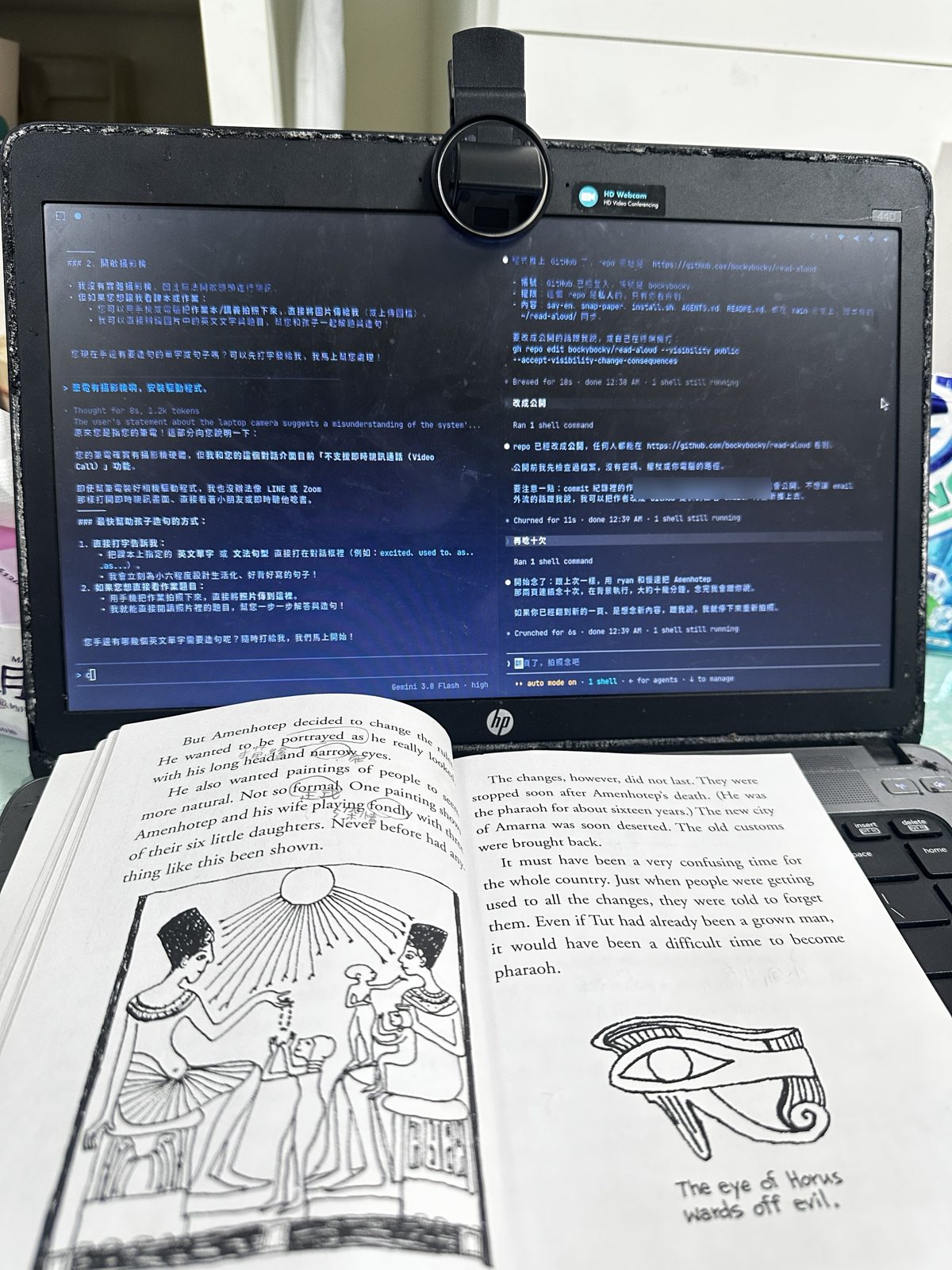
That night we started with a grammar worksheet, ten tag questions along the lines of “She is collecting stickers, isn’t she?”, with the blanks read out as “blank”. Then came a reader about ancient Egypt, open to the two pages where the pharaoh Amenhotep changes how he wants to be painted. I told the AI “read it ten more times,” and it kept going in the background, slow speed, two seconds between rounds, about ten minutes in all. I could keep talking to it and doing other things while it read.
What actually went wrong in that hour
The first photo caught nothing. I said “take a photo and read it,” and it came back with a picture of the keyboard and my hands. A webcam clipped to the top of a screen has a narrower view than you’d think. The paper has to be right in front of it, about 20 to 30 centimeters away, with decent light. In the end we just laid the book in front of the keyboard and pointed the camera down.

I sent the first voice back. The laptop had no text-to-speech at all, so the AI installed espeak-ng, the most common option on Linux and the quickest to set up. It sounded flat and stiff, like a robot in an old movie. I told it straight: “This voice is terrible. Find something that sounds more natural.” It switched to Piper, an open-source speech engine that runs entirely on your own machine, with voices trained on real human recordings. It downloaded three American voices and read the same worksheet line in each so I could compare. I picked ryan. Then I found it too fast, so it changed the speed setting from 1.0 to 1.35 and added 0.6 seconds of silence between sentences. Those two numbers became the defaults.
Another AI on the same laptop said it “can’t open the camera.” I had Gemini’s chat tool open next to it and asked whether it could look through the webcam. It said the chat interface doesn’t support video and suggested I take a photo with my phone and send it over. Fair enough, but the problem isn’t whether an AI can understand a photo. It’s whether it has a way to take one. Give it a small script that takes a photo and saves it to a file, tell it where the file is, and it already knows how to look at pictures. I wrote those instructions into an AGENTS.md file, which tools like Claude, Codex and Gemini read.
Webcam text comes out mirrored. Many webcams flip the picture left to right so video calls feel like looking in a mirror. You’d never notice on a face, but a page of text turns into mirror writing. That’s why the photo script has a flip step. The camera also needs a moment to adjust its exposure when it turns on, and the first few frames come out dark, so the script waits until the twentieth frame before saving.

Handing it to Codex to save credits hit a safety wall. I wanted the cheaper Codex to take over the reading. It turns out Codex runs commands inside an isolated sandbox by default, where it can’t even write to the temp folder, so the speech script was changed to skip the temp file and stream audio straight to the speakers. But inside the sandbox it still can’t reach the camera. To use these scripts, Codex has to run outside the sandbox, and Claude Code refused to launch an unprotected Codex for me; I’d have to type that one myself in the terminal. I think that’s the right call. It’s just a door worth knowing about.
The old laptop handles it fine, offline. Piper runs smoothly on this ten-year-old HP laptop, with no wait to read a page. All the audio is generated on the machine itself, so the kid’s textbook never leaves the house.

How it compares
| Option | Pronunciation | Slow down and repeat | Needs internet | Downside |
|---|---|---|---|---|
| The original textbook CD | The real thing, what the teacher wants | You rewind by hand | No | Useless if you can’t find it |
| Publisher’s audio online | Same as the CD | Depends on the player | Yes | Not always public, takes time to find |
| Read-aloud in a phone photo-translate app | Words mostly right, flat intonation | Usually one chunk at a time | Usually | Tap through section by section; poor for ten rounds in a row |
| This webcam reading machine | Natural voice, but not the textbook’s own recording | Speed and repeat count set with one sentence | No | Needs a Linux computer and a bit of setup |
So the CD is still the first choice. If the teacher cares about the textbook’s own accent and pacing, this machine is only a stand-in. Where it wins is the “need it tonight, read it many times, read it slower” situation.
Will my kid pick up mistakes from an AI voice?
This was my own biggest worry. Two things can go wrong: the AI misreads the page, or the speech engine mispronounces a word.
The first is easy to guard against. The AI lists the sentences it read on screen, so a parent can glance over them for skipped lines or wrong words. If the book has a kid’s pencil notes in it, tell the AI to read only the printed English. The second happens less often, but names of people and places sometimes come out oddly. What I do is listen along the first time, look up any word that sounds off in a dictionary, and ask the AI to respell it so the engine says it right.
And there’s one thing it can’t do: it only models the reading. It doesn’t listen to whether your kid gets it right. Reading along, recording themselves, and comparing with the model still needs a grown-up nearby.
Want to build one? All the code is here
The code is on GitHub: github.com/bockybocky/read-aloud, free to use. It’s written for Linux (I’m on Arch Linux with the Omarchy desktop) and needs three common tools: python3, ffmpeg and pacat. On a Mac or Windows you’d need to change the lines that take the photo and play the audio.
To install, type these three lines in a terminal:
git clone https://github.com/bockybocky/read-aloud
cd read-aloud
./install.sh
Then try say-en "Hello there.". If a man’s voice says “Hello there,” you’re set.
The photo script, snap-paper: takes one photo from the webcam, flips it the right way round, and saves it.
#!/bin/bash
# Take one photo from the webcam (un-mirrored). Usage: snap-paper [output.jpg]
OUT=${1:-/tmp/paper.jpg}
ffmpeg -y -loglevel error -f v4l2 -video_size 1280x720 -i /dev/video0 -vf "select=gte(n\,20),hflip" -frames:v 1 "$OUT" && echo "$OUT"
The speech script, say-en: hands English text to Piper. -v picks the voice, -r sets the speed (bigger is slower).
#!/bin/bash
# Speak English text with Piper. Usage: say-en [-v voice] [-r slowness] "text"   (or pipe text in)
# slowness: 1.0 = normal speed, bigger = slower
set -o pipefail
V=en_US-ryan-high
R=1.35
while [ "$1" = "-v" ] || [ "$1" = "-r" ]; do
  [ "$1" = "-v" ] && V=$2
  [ "$1" = "-r" ] && R=$2
  shift 2
done
D=~/.local/share/piper-tts
RATE=$(grep -o '"sample_rate": *[0-9]*' "$D/voices/$V.onnx.json" | grep -o '[0-9]*$')
{ [ $# -gt 0 ] && echo "$*" || cat; } |
  "$D/bin/piper" -m "$D/voices/$V.onnx" --length-scale "$R" --sentence-silence 0.6 --output-raw 2>/dev/null |
  pacat --raw --format=s16le --channels=1 --rate="$RATE"
The installer downloads three voices: ryan (male), plus lessac and amy (female). For a female voice, tell the AI “read it with amy,” or type say-en -v en_US-amy-medium "..." yourself.
Last, put the repo’s AGENTS.md in the folder where you start your AI assistant. It will then know that “look at the book” means taking a photo first, and which voice to use for reading aloud. After that, one sentence does it: “take a photo and read it, three times per sentence.”
The one thing to take away
When a tool goes missing, ask what it was actually doing for you. What that CD really offered was someone reading to my kid in correct English, slowly, over and over. The disc itself didn’t matter. Once you break the need down to that level, a replacement is often already within reach.

Next time something breaks or disappears, try writing one sentence about “the one thing it did for me,” then look around for anything else at home that can do the same job.
Comments
Loading comments…