# I Let AI Turn My Old Laptop Into a Home AI Server
Source: Realpha Blog (blog.getrealpha.com)
Original article and charts: https://blog.getrealpha.com/en/blog/old-laptop-ai-server-2026-10/
> An old HP laptop still running Windows 7 had been sitting in a drawer. I plugged in an install USB stick, typed a few short commands and entered my own passwords; AI did the rest over SSH from my other computer, installing Arch Linux and Omarchy, full-disk encryption, Tailscale and input methods, while keeping Windows 7 intact. What it did, where it got stuck, what it couldn't do, and the steps if you want to try it. Personal notes.
Published: 2026-10-03
Locale: en
Tags: old laptop, Linux, Arch Linux, Omarchy, Claude Code, SSH, Tailscale
TL;DR: An old computer doesn't have to be thrown out. I plugged in a USB stick, typed a few lines and entered my passwords; AI installed Linux remotely from another machine, and the laptop is now a small always-on AI server, with its original Windows 7 still there.
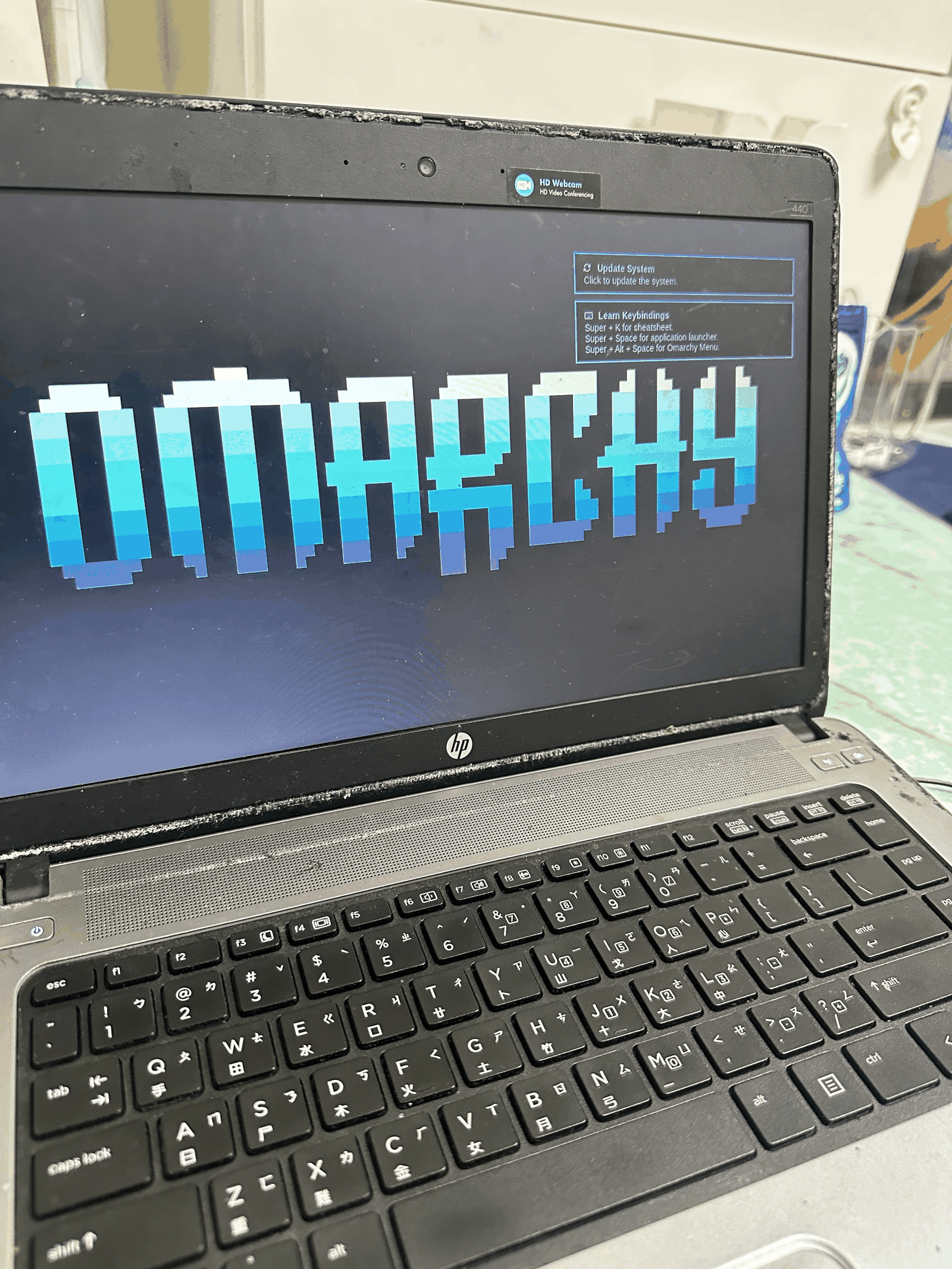
> *The old warhorse lies in its stall, its heart still set on a thousand miles;*
> *a brave man in his final years does not let go of his ambitions.*
> —— Cao Cao, "Though the Tortoise Lives Long" (Eastern Han, c. 207); translation mine
There's an old laptop in my drawer, an HP ProBook 440 G1. It has 12GB of RAM, a spinning hard drive, and it still runs Windows 7. I hadn't used it in years, but I couldn't bring myself to throw it away.
This weekend I wanted it working again. I didn't feel like following an install guide step by step, though. I wanted to try something else: have AI install it for me, over the network, from the computer I use every day.
## All I did was three things
1. Made an install USB stick, plugged it in and booted from it.
2. Typed a few very short commands on the old laptop so it could join my home network and open the door for a remote connection.
3. Sat at the laptop and typed in passwords myself whenever one was needed.
Everything else was done by AI from the other computer. It used SSH, which lets you type on one machine and have the commands run on another.
## What it did
- Partitioned the drive. The original Windows 7 wasn't touched, and at boot I can choose which system to start.
- Installed Arch Linux, then Omarchy on top of it. Omarchy is a Linux desktop that comes already set up, and it looks good the moment you open it.
- Encrypted the whole Linux drive, so if the laptop gets lost, nobody can read what's on it.
- Set up Tailscale, a private network, so I can reach this laptop even when I'm out.
- Switched remote login to keys only, no passwords, so guessing a password gets nobody in.
- Installed Chinese input methods, Zhuyin and Boshiamy.
At 7:20 that evening the old laptop restarted. A huge OMARCHY filled the screen, and then a wallpaper with a deer on it.
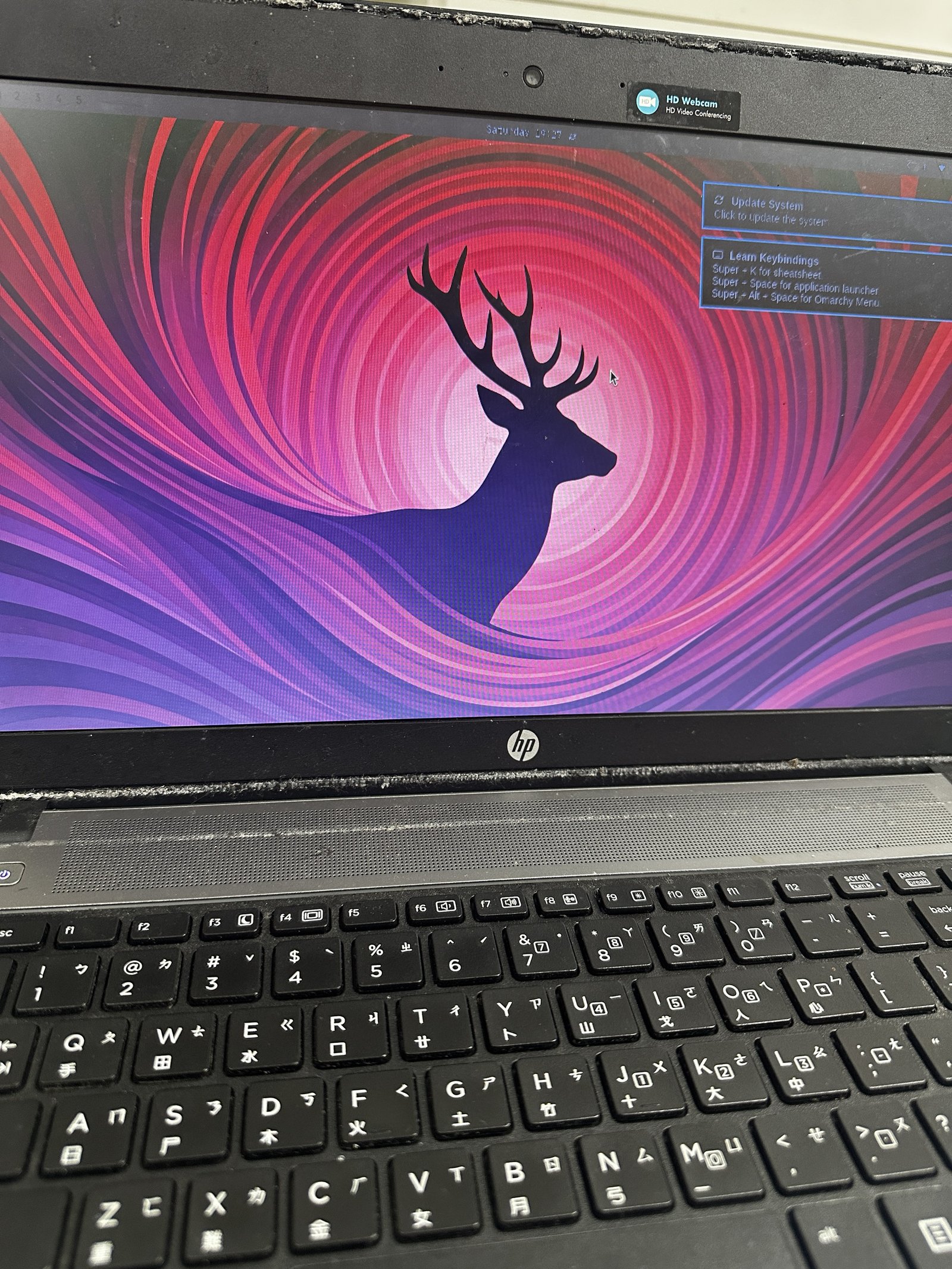
I sat there looking at that deer for a long time.
## It got stuck too
It wasn't smooth the whole way.
- After the install, no web address would resolve. The AI dug through the settings and found that Omarchy hands name lookups to a service that hadn't been started. Turning it on fixed it.
- On the old laptop I could only type by hand, with no copy and paste, so every command the AI gave me had to be short.
- It read a network address off a photo I took of the screen, and once it read 255 as 225.
- When it searched the network for the Windows 7 machine, the first one it found was the computer it was running on. After that it learned to rule itself out first.
Each time, it told me what had gone wrong, fixed it, and wrote it into its notes so it wouldn't happen again.
## And some things it couldn't do
I wanted to cap charging at 80% so the old battery would last longer. It turned out this laptop's BIOS simply doesn't have that option.
I also wanted to run a virtual Windows inside Linux. That needs a setting turned on in the BIOS, and I'd forgotten the BIOS password.
The AI didn't force it. It said it couldn't be done, explained why, and took another route: since the real Windows 7 was still on the drive, why not make that manageable remotely too? I booted into Windows 7, right-clicked a file and ran it as administrator. A few minutes later it was connected to Windows 7.
Now both systems on this laptop can be looked after from my main computer. The Linux side also comes with Claude Code built in, so once I sign in, it will be a small AI server that's always on call.
## Want to try it? Here's how I did it
First, the risk. This involves repartitioning the drive, and if a partition goes wrong, your Windows files could be lost. So step one is always **back up your important files somewhere else**.
You'll need four things: an old computer, a USB stick of 16GB or more, a second computer with Claude Code already installed, and one Wi-Fi network both machines can join.
1. **Free up some disk space in Windows.** Open Disk Management, right-click the C drive, choose "Shrink Volume" and leave about 100GB for Linux. Mine had already been split earlier.
2. **Make the install USB stick.** Download the installation image from the Arch Linux website and write it to the stick with Rufus or balenaEtcher.
3. **Boot from the stick.** Plug it in, press the boot menu key at startup (usually F9 on HP machines) and pick the USB stick.
4. **Get online and open the door.** Once you're at the black-and-white text screen, you only need to type three things:
- Join Wi-Fi: `iwctl station wlan0 connect YourWiFiName`
- Set a temporary password: `passwd`
- Find the address: `ip -4 addr`, and look for the numbers after `inet`
5. **Hand the address to the AI.** Back on the other computer, tell Claude Code something like:
> Please SSH into this address as root, using the temporary password I just set. Install Arch Linux on the space I freed up, encrypt it, keep Windows and the boot menu, then install Omarchy. Before each step, tell me what you're about to change.
6. **When the AI asks for a password, type it yourself at the old computer.** The disk encryption password has to be entered by you; the AI never sees it.
7. **Reboot.** Pick Linux in the boot menu, enter the disk password, and the Omarchy desktop will come up.
8. **Let the AI finish up.** I had it install Tailscale, switch remote login to keys only, and set up Zhuyin and Boshiamy. Tailscale gives you a link; open it on your phone and sign in.
9. **Change the temporary password.** The install used an easy-to-type temporary password. Once everything's done, be sure to change it to your own.
I installed Arch first and then had the AI put Omarchy on top. That way the original Windows and its boot menu both stay.
## Why it moved me
The technology impressed me less than the laptop did.
This computer I nearly threw away is alive again, and all I did was sit beside it, plug in a USB stick, type a few lines and enter a few passwords.
Installing Linux used to mean a dozen open tabs of tutorials and a whole night stuck on one error message. This time, whenever I got stuck, I had someone looking at it with me and fixing it with me.
Old things don't always need to be replaced. Sometimes they're just waiting for someone with a little patience.